
SIROBY / GLOBAL

One Siroby.
Closer to you.

Choose a market and language to continue on this page.

Việt NamTiếng ViệtPhilippinesEnglishUnited StatesEnglish · USD

SUPPORT

How to use Siroby

Step by step, with screenshots from the real app: setting up, your first free session, signing in, buying a plan and fixing camera problems.

Explore what you need

SUPPORT

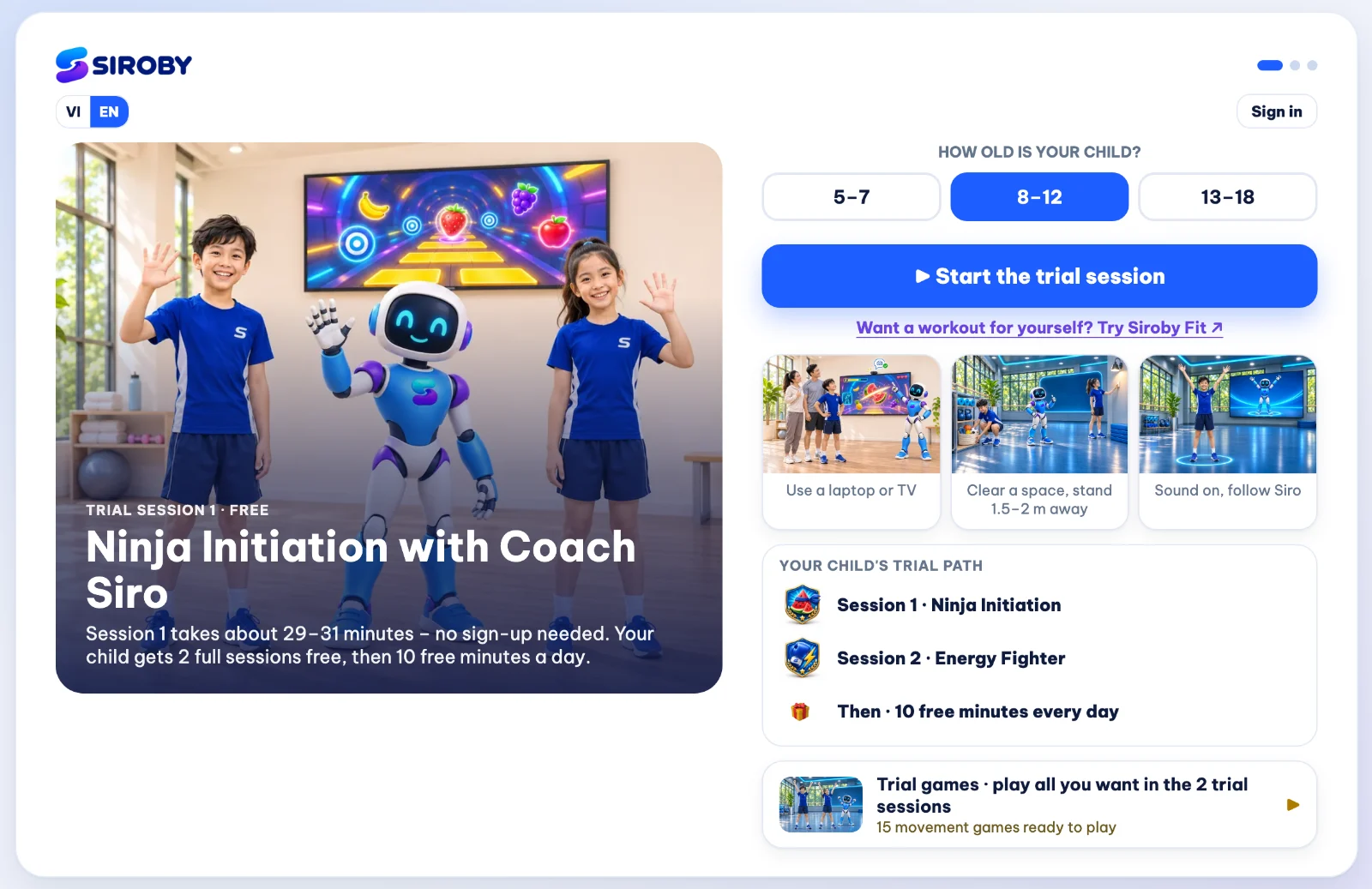
Your first free session

From opening the app to finishing session 1, with no account needed. Session 1 takes about 30 minutes and has 5 movement games.

SUPPORT

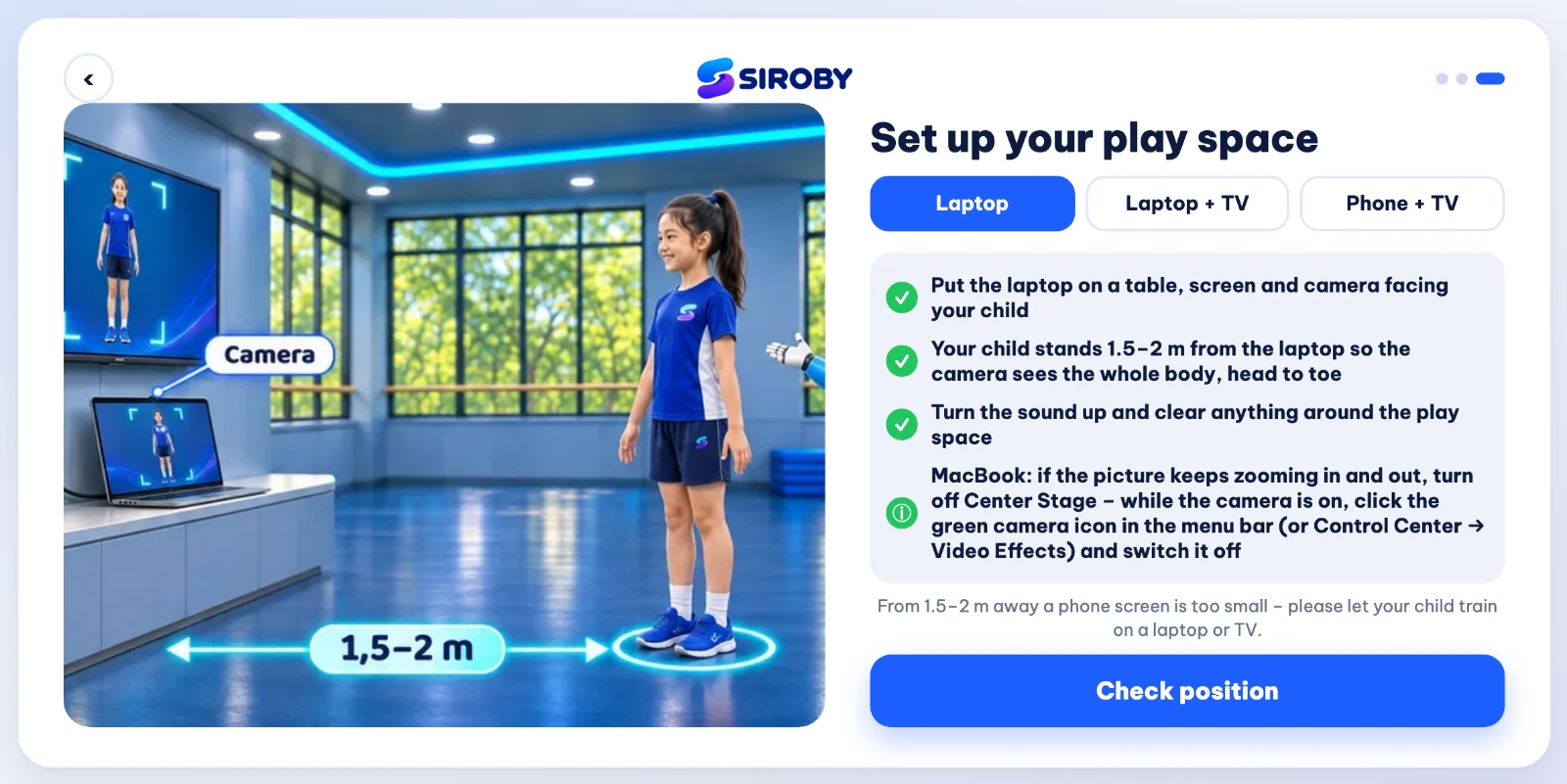
Setting up your device and space

On its “Set up your play space” screen, the app asks how you will set up. Here are the three options, with the distance and space you need.

SUPPORT

Get a laptop ready for a session.

Secure the laptop, check its camera and review the frame before starting a movement activity.

SUPPORT

Why move to a larger screen?

A phone can still run Siroby smoothly. But when your child steps back for full-body camera framing, the small screen makes demonstrations and feedback harder to follow. For a better training experience, Siroby does not recommend training directly on a phone screen; prefer a computer connected to a TV.

SUPPORT

TV: the preferred view for comfortable training.

Connect a computer to a TV or large display so your child can follow the workout from the camera position. The computer runs Siroby, the TV shows the picture, and the computer camera or webcam observes movement.

SUPPORT

When the browser needs camera permission.

Permission may be controlled by both browser and operating system. The website never requests it; the guide applies when you open the Siroby app.

SUPPORT

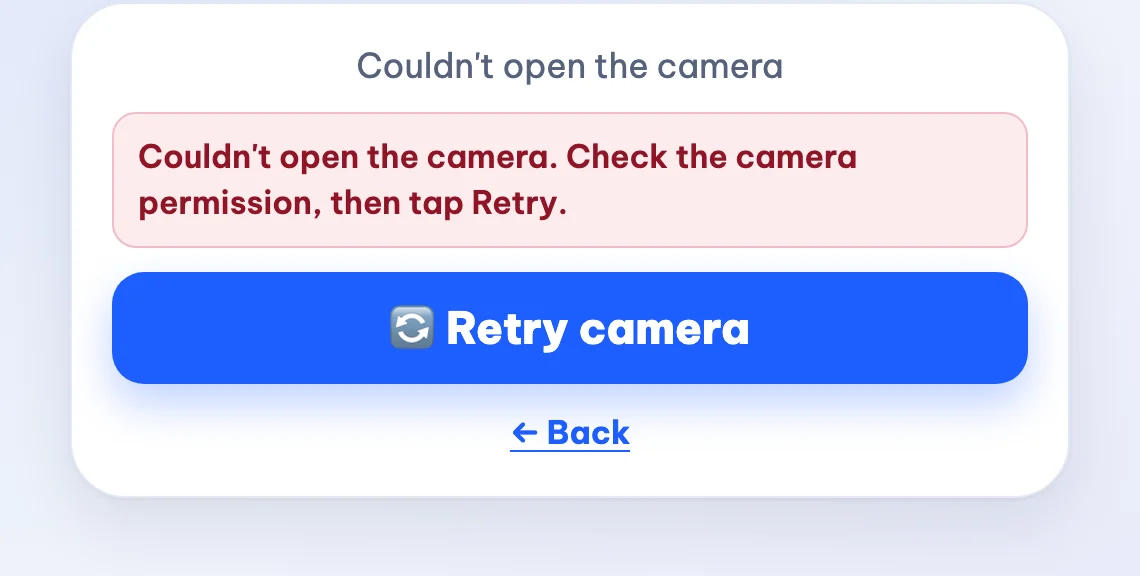
When the app can’t open the camera

The app shows a Couldn’t open the camera screen with the reason. Read it, follow the matching step below, then tap Retry camera.

SUPPORT

Give the camera a clearer view.

A few changes to lighting and positioning can make the frame easier to observe before trying an interaction.

SUPPORT

When the picture or response feels slow.

Start with low-impact checks: reduce background tasks, check heat and separate app delay from external-display delay.

SUPPORT

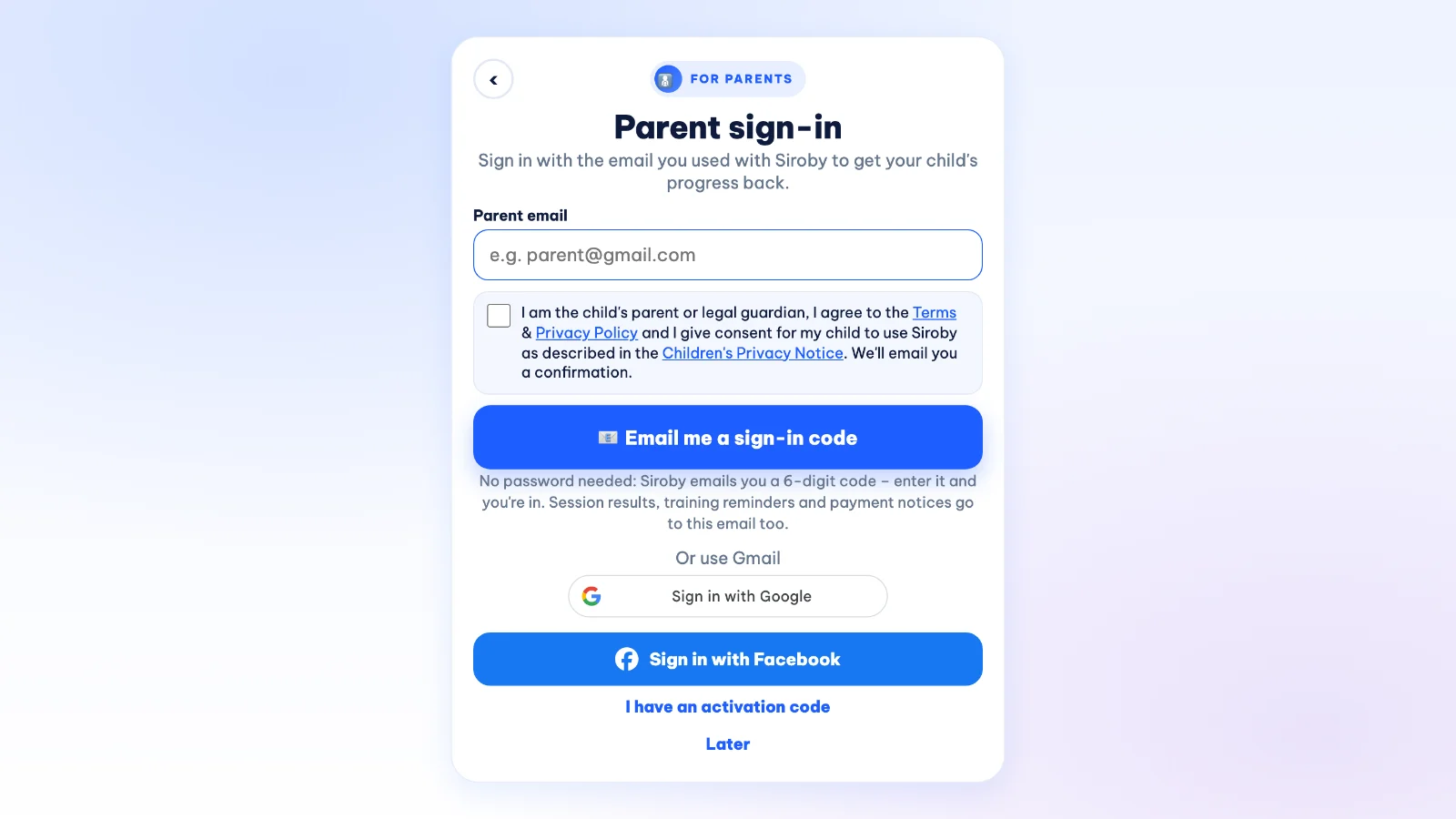
Signing in and creating a parent account

An account keeps your child’s progress and unlocks the second free session. No password needed: Siroby emails a 6-digit code, or you can use Google or Facebook.

SUPPORT

Understand the trial before starting.

A trial helps families get familiar with the experience and check their setup. Review the app for the conditions currently in effect.

SUPPORT

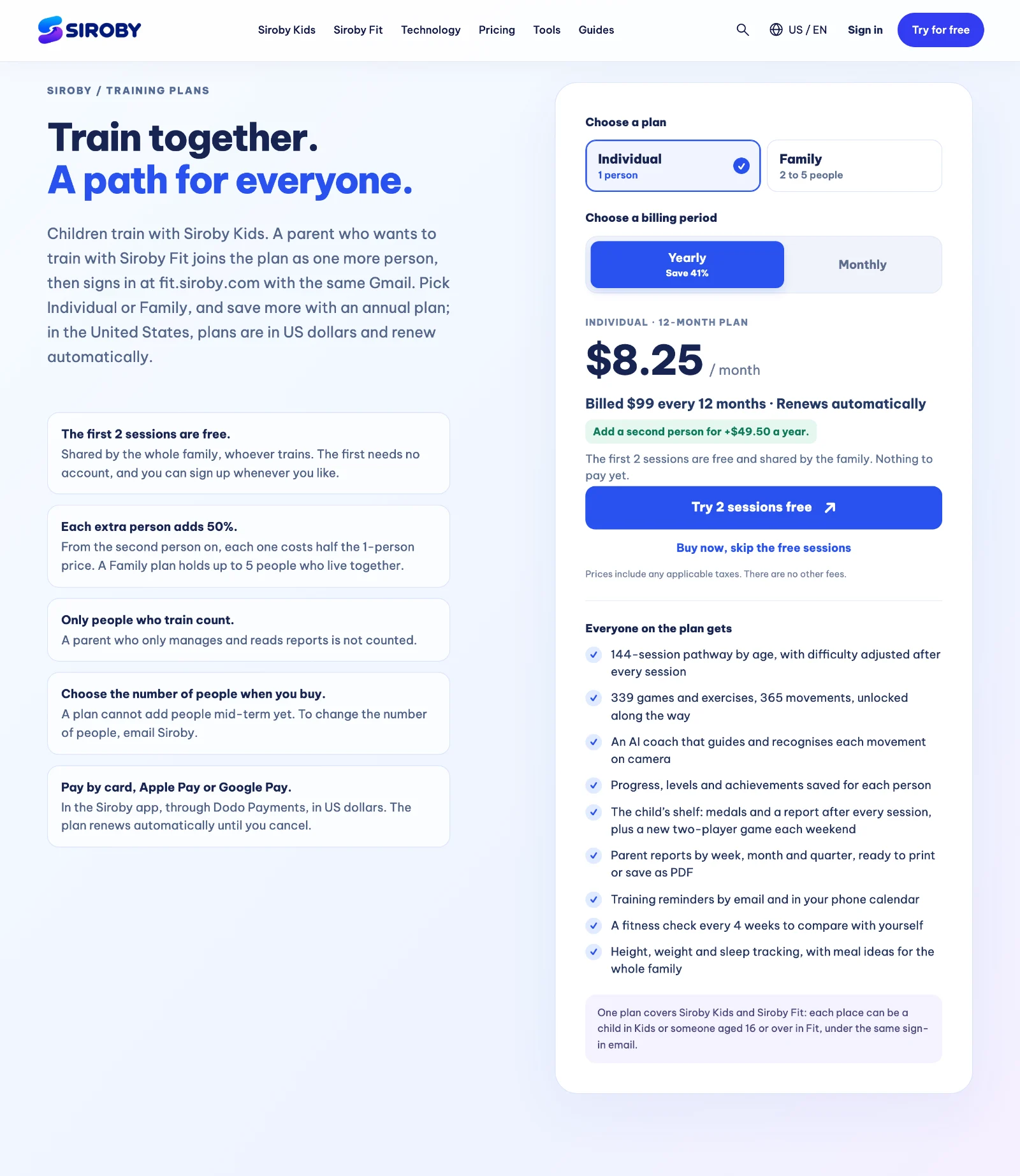
Buying a Siroby Kids plan

Choose a plan on this website or in the app, sign in with email, then pay right in the app in US dollars, by card, Apple Pay or Google Pay through Dodo Payments. The website does not take payments itself.

SUPPORT

Plan not visible? Start with the account.

This guide helps prepare an activation enquiry. The website does not look up orders or accounts itself; send the details through Contact support or to hotro@siroby.com to have them checked.

SUPPORT

Prepare a clear refund enquiry.

Review the terms that applied at purchase, describe the situation and email it to hotro@siroby.com.

SUPPORT

Describe the situation to start a conversation.

Send a support request by email. A short description of what happened gets a faster answer.

Starting for the first time

Review the quick-start guide, choose your device and prepare the space. You can open the app directly; a growth check is not required.

When the setup is not working

Separate permission problems, unclear images and slow performance. Working through one category at a time avoids changing multiple settings without knowing the cause.

Questions about a plan or payment

Have an order reference and a brief description ready, then send it through Contact support or to hotro@siroby.com. The website does not look up account status itself.