
Step 1
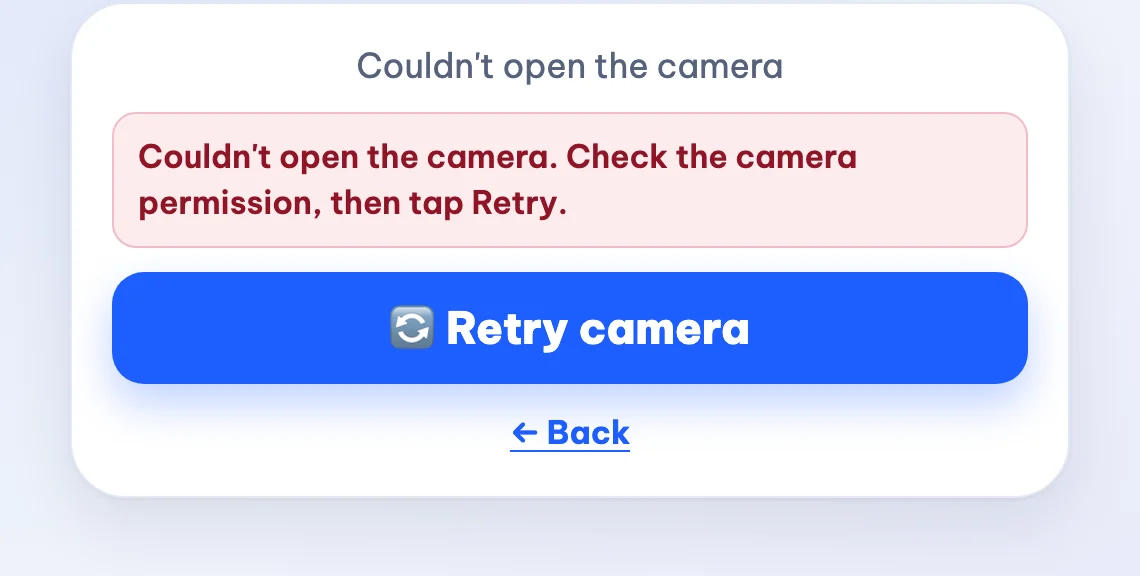
Read the message on screen
It tells you whether the camera is blocked, not found or busy, or whether the device can’t run body tracking. A free session only counts once it is completed, so a camera problem midway doesn’t use it up.
Step 2
Camera access is blocked
On a computer (Chrome, Edge, Firefox): click the icon at the start of the address bar, turn Camera on, then click Retry camera. In Safari or on an iPhone: tap the lock icon next to the address, choose Camera, then Allow. On Android: Settings → Apps → your browser → Permissions → Camera → Allow.
Step 3
No camera found, or the camera is busy
Open the camera shutter and check the webcam cable. If Zoom, Meet or another app is using the camera, close it, then tap Retry camera.
Step 4
The device can’t run body tracking
Open the app in an up-to-date Chrome, Edge or Safari (it needs WebGPU or WebGL2), or use another device. If it says body tracking couldn’t load, check your internet connection and try again.
Step 5
Still slow, or still not working
On a slower device, the app lowers the picture quality by itself. Close other tabs and apps, and plug the laptop in. Still stuck? Send Siroby the device, browser and the message on screen; no photo of your child is needed.
Related questions
References
Reviewed on 3 October 2026. These sources do not endorse or certify Siroby.